Disclaimer: EasySetupGuide.net is an independent informational website providing DIY troubleshooting guides and setup instructions. We are not affiliated with, endorsed by, or direct representatives of any printer brand or manufacturer.
EasySetupGuide.net
Independent Tech Support & Setup Resource

Instant Solutions for Printer Setup & Troubleshooting

Clear, step-by-step resolution steps for printer offline errors, driver conflicts, paper feed jams, wireless drops, and hardware setup.
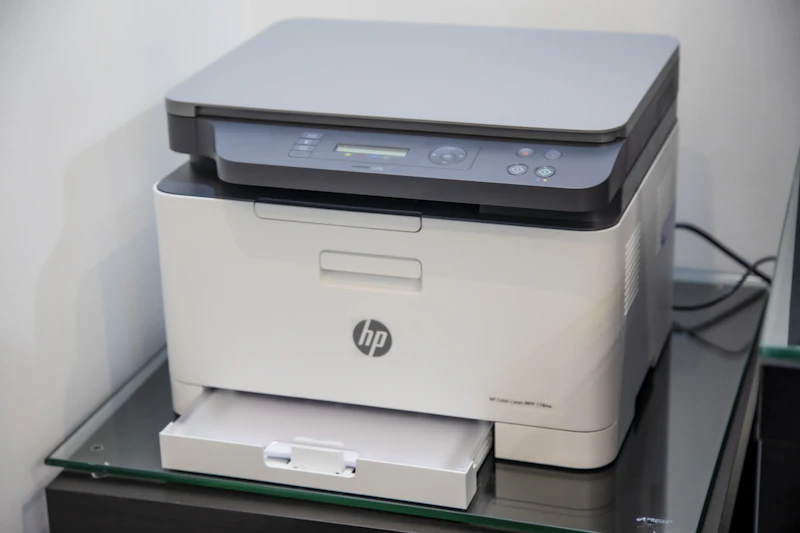
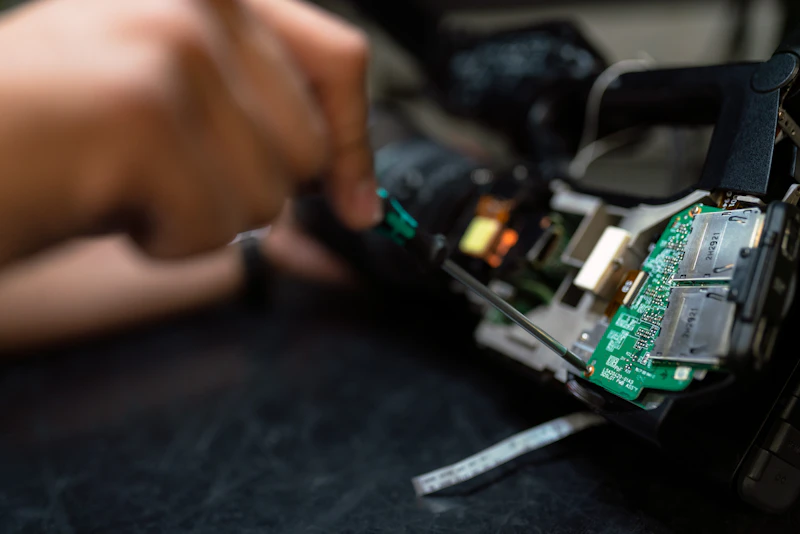
Printer Diagnostics and Troubleshooting

Core Support Categories

Detailed reference material to help you connect, configure, and fix printing hardware issues on any device.

Printer Setup & Installation

Complete unboxing configurations, USB/network driver setup, and initial test print verification across Windows, Mac, and mobile.

Fix Printer Offline Errors

Clear print queue backlogs, restart print spooler services, re-bind static IP addresses, and bring offline devices back online.

Connect & Add Printer

Instructions for 2.4GHz / 5GHz Wi-Fi setup, Bluetooth pairing, IP-based manual network addition, and AirPrint settings.

Hardware Troubleshooting

Resolve mechanical paper feed jams, replace misaligned printheads, resolve door-open errors, and fix paper tray sensor faults.

Driver & Software Diagnostics

Fix corrupted driver installations, perform clean driver uninstalls, update printer firmware, and resolve device manager errors.

Print Quality Troubleshooting

Fix faded text, streaks, misaligned color layers, clogged ink nozzles, and toner smudges on printed documents.

Printer Troubleshooting Hub

In-depth resolution procedures for common hardware, network, and print queue problems.

1. Print Spooler & Offline Service Reset

When a printer displays as "Offline" despite being powered on and connected to Wi-Fi, the Windows Print Spooler service may be frozen or holding corrupted queue files.

Step A: Press Win + R, type services.msc, and hit Enter.

Step B: Scroll down to locate Print Spooler, right-click, and choose Stop.

Step C: Open File Explorer and navigate to C:\Windows\System32\spool\PRINTERS. Delete all cached temporary files inside.

Step D: Return to services.msc, right-click Print Spooler, and click Start.

2. Resolving Paper Feed Jams & Sensor Errors

Phantom paper jam errors occur when minute paper torn pieces block the optical roller sensor, or when paper feed rollers accumulate dust over time.

Step A: Turn off the printer and completely disconnect the power adapter cable.

Step B: Open all access doors (rear panel, cartridge door) and gently remove stuck paper using both hands in the direction of the paper path.

Step C: Clean the rubber pick rollers carefully using a lint-free cloth lightly dampened with distilled water.

Step D: Reconnect power, reload fresh paper, and execute a self-test print alignment.

3. Fixing Wi-Fi Signal Dropouts & IP Mismatches

If your router reassigns dynamic IP addresses on reboot, your computer will lose communication with the printer's network port.

Step A: Print a Network Status Sheet directly from the printer maintenance menu to confirm its current IP address.

Step B: Open your web browser and input the printer's IP address to access the Embedded Web Server (EWS).

Step C: Under Network Settings, convert the IPv4 address assignment from DHCP to Static/Manual.

Step D: Update the Standard TCP/IP Port settings in your computer's Printer Properties tab to match.

4. Fixing Blank Pages, Lines, & Faded Prints

Faded output or horizontal blank lines are typically caused by dried ink clogging the printhead nozzles or low toner density settings.

Step A: Access the printer driver application or control panel maintenance menu.

Step B: Run a Nozzle Check pattern to identify which color channels are failing or blocked.

Step C: Perform an automated Printhead Cleaning Cycle, followed by printhead alignment calibration.

Step D: Verify that protective vent tape has been fully removed from new ink or toner cartridges.

Standard Setup Workflows

Follow these essential setup procedures for newly acquired printers or network updates.

Guide 01

Fixing "Printer Offline" in Windows

  1. Open Control Panel and navigate to Devices and Printers.
  2. Right-click your active printer and select See what's printing.
  3. Click on the Printer tab at the top menu bar.
  4. Ensure "Use Printer Offline" is unchecked.
  5. Restart the computer and power cycle your router and printer.
Guide 02

Connecting Printer to Wi-Fi Network

  1. Locate the printer's front control screen or touch panel interface.
  2. Navigate to Network / Wireless Settings and run Setup Wizard.
  3. Select your 2.4GHz Wi-Fi SSID network name from the list.
  4. Type in your Wi-Fi Security WPA/WPA2 password carefully.
  5. Print a Wireless Network Test Report to verify successful connection.
Guide 03

Adding Printer by IP Address

  1. Print a configuration status sheet from your printer to note its IP address.
  2. Open Settings > Bluetooth & Devices > Printers & Scanners.
  3. Click Add device, then choose Add manually.
  4. Select Add a printer using an IP address or hostname.
  5. Enter the printer's IP address and install the matching driver software.

Frequently Asked Questions

Common questions regarding printer setup, troubleshooting, and network connectivity.

Why does my printer state "Offline" when connected to Wi-Fi?

This typically happens due to dropped wireless signals, corrupt print queue backlogs, dynamic IP address changes assigned by your router, or Windows setting the default status to offline after a temporary network drop.

How do I reconnect a wireless printer after replacing my Wi-Fi router?

Reset the printer's network configuration settings via its menu, run the Wireless Setup Wizard again, select your new router's network name (SSID), and enter the new Wi-Fi password.

What causes paper jams even when no paper is visible?

Microscopic paper fragments blocking optical lever sensors, dust buildup on pick rollers, or misaligned paper tray guides can trigger false paper jam errors on printers.

Are you an official representative for printer manufacturers?

No. EasySetupGuide.net is an independent setup portal offering informational content, diagnostic guides, and setup steps. All trademarks and brand names belong exclusively to their respective owners.

Technical Troubleshooting Support

About EasySetupGuide.net

At EasySetupGuide.net, our goal is to streamline printer setup and troubleshooting processes through straightforward, easy-to-follow technical guides.

Whether you are installing a new wireless desktop printer or troubleshooting complex print spooler and IP assignment issues, our resource portal gives you actionable diagnostic procedures to fix problems fast.

In-depth hardware and software troubleshooting tutorials
Clear, independent setup and connection guides
Multi-platform setup support (Windows, macOS, Mobile)

Request Technical Assistance

Need help with a specific printer setup or persistent troubleshooting issue? Send us a query.